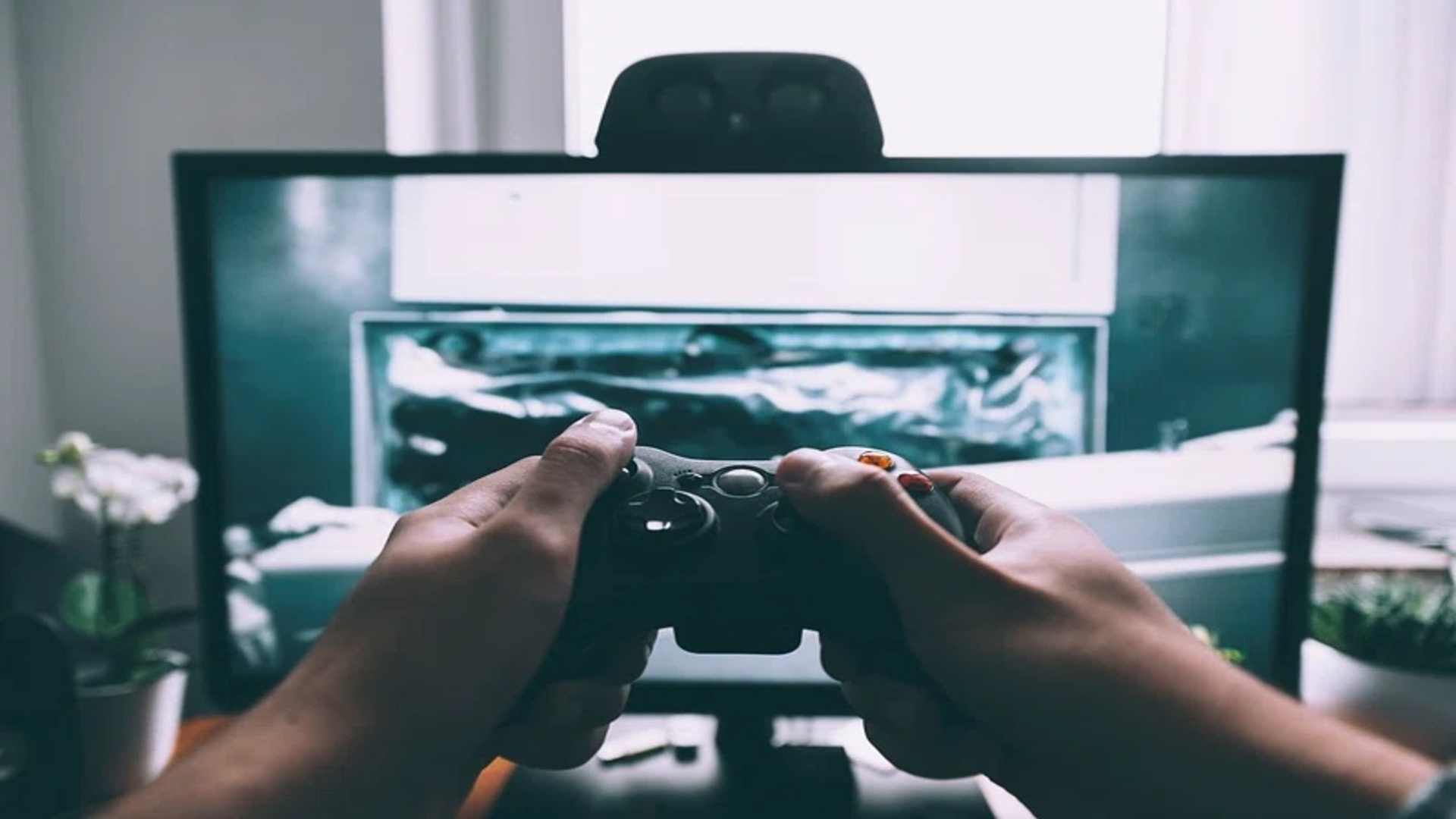
Setting up a new DualSense controller with your PlayStation 5 is a straightforward process, whether you are configuring a second gamepad for local multiplayer or re-linking your main controller. While the console utilizes advanced Bluetooth technology for wireless communication, the initial pairing sequence relies on a physical connection to establish a secure link. Understanding the precise steps involved ensures a smooth setup experience without encountering frustrating sync delays.
Initial Wired Setup Method
To begin the primary sync process, power on your PlayStation 5 console using the physical power button located on the front panel. Connect one end of the included USB Type-C cable to the front port of the console and attach the other end to your DualSense controller. Press the PS button in the center of the gamepad to initiate the hardware handshake between both devices.
Once the light bar on the controller blinks blue and then turns a solid color, your gamepad is officially paired to the console system. You can now safely disconnect the USB cable to enjoy full wireless functionality during your gaming sessions. If you ever need to reset your gamepad hardware, learning how to restart PS5 controller and fix connection issues can resolve unexpected wireless drops quickly.
Wireless Syncing via Bluetooth
If you prefer to pair a new controller without plugging it in directly, you can utilize the console's onboard Bluetooth settings menu. Navigating to this menu requires an already active controller or a media remote to select options on the screen. Go to Settings, open the Accessories tab, select General, and enter the Bluetooth Accessories section.
On the secondary controller you wish to pair, press and hold the Create button and the PS button simultaneously for a few seconds. The light bar around the touchpad will begin to blink rapidly, indicating that the device has entered pairing mode. Select the newly detected controller from the screen menu to complete the wireless registration instantly.
Troubleshooting Common Connection Issues
Sometimes a controller may fail to sync due to signal interference or low battery power during the initial connection attempt. Ensure your controller is sufficiently charged before pairing, as depleted batteries can prevent Bluetooth recognition. Using a USB cable capable of data transfer rather than a charge-only cable is also critical for wired syncs.
If the controller refuses to connect, clearing existing device entries in the console settings often clears up communication conflicts. You can also press the small reset button located inside a tiny pinhole on the back of the DualSense controller. Holding this button down for five seconds restores factory settings, making it easy to attempt the pairing process fresh.